Toggle Indicator Color, Toggle Indicator Color (Checked), Toggle Indicator Color (Disabled)
Toggle Indicator Color
Controls the color of the indicators on the toggle.
Property Type:  Static
Hierarchical Reference: ControlName.ToggleIndicatorColor
Default Value:
Toggle Indicator Color (Checked)
Controls the color of the indicators on the toggle when checked.
Property Type: Static
Hierarchical Reference: ControlName.ToggleIndicatorColorChecked
Default Value:
Toggle Indicator Color (Disabled)
Controls the color of the indicators on the toggle when disabled.
Property Type: Static
Hierarchical Reference: ControlName.ToggleIndicatorColorDisabled
Default Value:
To Change the Default Value
Ensure the property is a static property (the gray orb will be displayed alongside the property name)
The default value of the static property can be changed by one of the following methods:
- Using the Color Chooser.
- Click in the property for the control to be changed
- Click the drop down list at the end of the property value field
- Select the color tab to use (Custom or Web, see Web Safe Colors below)
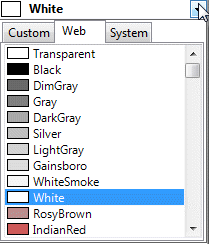
- Select the required color from the list.
- Typing the Color name or Hexadecimal value.
- Click in the property for the control to be changed
- Type the name of the color or it's hexadecimal value directly into the property field.
Examples
| Color Property Value (static) | Result |
|---|---|
| White | Changes the color to white |
| Transparent | Changes the color to be transparent |
| #644B47 | Changes the color to be the color of the hexadecimal value #644B47 |
A rule can also be built for this property by changing the type to dynamic.
See How To: Change A Static Property To A Dynamic Property.
| Color Property Value (dynamic) | Result |
|---|---|
| ColorHex(56,129,205,255) | Changes the color to be the hexadecimal equivalent of the RGB values 56, 129, 205 with an Opacity value of 255. |
| ColorHex(RedReturn, GreenReturn, BlueReturn, OpacityReturn) | Changes the color of the control to be the hexadecimal equivalent of the RGB and Opacity values coming from the corresponding controls. |
Web Safe Colors
When selecting a color, we strongly recommend using colors selected only from the Web or Custom tabs, or manually entering as a hexadecimal value (for example #000000 for black).
Named colors selected from the System tab (for example ControlText) are very unreliable.
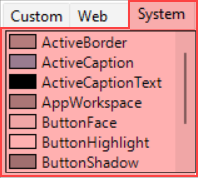
System colors will vary per browser, and/or the user's chosen color scheme.
System colors were deprecated in CSS 2.1, and should be avoided.
Default Property values previously using System colors (for example ControlText) were replaced with safe alternatives in DriveWorks 22.0.
New Controls made from this version onwards will no longer use System colors by default.
Existing Controls created before this version will use the old defaults, we suggest existing controls that use System colors are replaced with alternative web safe values.
For example:
ControlText → Black
Value set in Form Designer. For DriveWorks projects static properties can be made Dynamic by double clicking the gray radio button.
Value set in Form Designer. For DriveWorks projects static properties can be made Dynamic by double clicking the gray radio button.
Value set in Form Designer. For DriveWorks projects static properties can be made Dynamic by double clicking the gray radio button.
- Welcome
- What's New
- DriveWorks 24
- Older Versions
- DriveWorks 23
- DriveWorks 22
- DriveWorks 21
- DriveWorks 20
- DriveWorks 19
- DriveWorks 18
- DriveWorks 17
- DriveWorks 16
- DriveWorks 15
- DriveWorks 14
- DriveWorks 12
- What's New DriveWorks 12
- Form Design
- Rule Builder
- Model Rules
- DriveWorks Add-in for SOLIDWORKS
- SP1
- SP2
- DriveWorks 11
- Welcome to DriveWorks Solo 11 What's New
- Capturing
- Project Designer
- Installation
- Licensing
- SP1
- SP1.1
- SP2
- SP3
- V10
- V9
- V8
- SP0
- SP1
- SP2
- SP3
- V7
- Before You Begin
- Using DriveWorks Solo
- DriveWorks Solo Inside SOLIDWORKS
- Enabling the DriveWorks Solo Add-ins in SOLIDWORKS
- Project Wizard
- Capturing Models
- Captured Models
- Part Mode
- Assembly Mode
- Drawing Mode
- Run
- Run (Layout Mode)
- Project Designer
- Project Designer
- Stage 1: User Interface
- Stage 2: Data and Rules
- Stage 3: Output Rules
- Writing Rules
- Writing Rules
- Rules Builder
- Extract Variable
- Edit Variable
- Rule Builder Settings
- Document Rules
- Model Rules
- Model Rules Overview
- Parts and Assemblies
- File Name
- Relative Path
- Configuration
- Feature
- Dimension
- Tolerances
- Custom Property
- Instance
- File Formats
- Advanced Feature Parameter Rules
- Model Rules Advanced Feature Parameter Rules - Overview
- Boss/Base Features
- Boss/Base Thin
- Break Corner
- Chamfer
- Circular Component Pattern
- Circular Pattern
- Coordinate System
- Cosmetic Thread Features
- Curve
- Curve Driven Pattern
- Curve Through XYZ Points
- Cut Features
- Distance Mate Features
- Draft
- Edge Flange
- Features
- Fillet
- Hole Wizard Features
- Linear Component Pattern
- Circular Pattern
- Linear Pattern
- Lofted Bend
- Mates
- Mold Features
- Offset Surface
- Pattern Driven Component Pattern (Derived)
- Patterns with Advanced Feature Parameters
- Revolved Boss/Base
- Revolved Boss/Base Thin
- Rib
- Ruled Surface
- Sheet Metal Features
- Simple Hole
- Sketch Driven Pattern
- Slot Mate
- Surface Features
- Sweep Thread
- Table Driven Pattern
- Var Fillet
- Weldment Features
- Wrap
- Drawings
- Functions
- Functions
- Conversion
- Cryptography
- Date and Time
- ConvertFromUtc
- ConvertToUtc
- Date
- DateAddDays
- DateAddHours
- DateAddMilliseconds
- DateAddMinutes
- DateAddMonths
- DateAddSeconds
- DateAddWeeks
- DateAddYears
- DateTime
- DateTimeLocal
- DateTimeSpan
- DateValue
- Day
- GetTimeZones
- Hour
- Minute
- Month
- NetWorkDays
- NetWorkDaysCustom
- Now
- NowUTC
- Second
- TimeValue
- Today
- UnixEpoch
- Weekday
- WeekNum
- WorkDay
- WorkDayCustom
- Year
- File System
- Helper
- Lambda
- List
- Logical
- Math
- Specification
- Table
- CountIF
- CSVFromTable
- Dcount
- DMax
- DMin
- DWHLookup
- DWVLookup
- GetTableValue
- HLookup
- ListAll
- ListAllConditional
- ListAllConditionalDistinct
- ListAllDistinct
- SumTableColumn
- TableAppendColumns
- TableAppendRow
- TableAppendRows
- TableAverage
- TableBreak
- TableColumn
- TableColumnLookup
- TableCombine
- TableDistinct
- TableDistinctCount
- TableDistinctSum
- TableFilter
- TableFilterAll
- TableFilterByList
- TableFormat
- TableFormatInvariant
- TableFromCsv
- TableFromList
- TableGetColumnCount
- TableGetColumnIndexByName
- TableGetDataRows
- TableGetHeaderRow
- TableGetRowCount
- TableGetRows
- TableGetValue
- TableJoin
- TableMax
- TableMaxValue
- TableMin
- TableMinValue
- TableRemoveBlankColumns
- TableRemoveBlankRows
- TableRemoveColumn
- TableRemoveRow
- TableReplaceHeaderRow
- TableReplaceHeaders
- TableReplaceRow
- TableReverse
- TableRow
- TableSearch
- TableSelectColumns
- TableSequence
- TableSkipRows
- TableSort
- TableSortByDate
- TableSortByList
- TableSubstitute
- TableSum
- TableTakeRows
- TableTranspose
- TableWithSequence
- VLookup
- Text
- Validation
- Variables
- Knowledge Base
- Concept
- How To
- How To: SolidWorks Best Practices
- SOLIDWORKS Best Practices (KB13103019)
- SOLIDWORKS Features
- How To: Format Text (KB13021901)
- How To: Backup a Project (KB13022601)
- How To: Change A Static Property To A Dynamic Property (KB13111201)
- How To: Create A Cut Down Project (KB17092602)
- How to: Create and Install Project Templates
- How To: Determine the Version of DriveWorks Solo
- How To: Diagnose Project Issues
- How To: Diagnose Project Issues Using On Demand Generation Report
- How To: Diagnose Project Issues Using The Form Designer
- How To: Diagnose Project Issues Using The Rules Builder
- How To: Diagnose Project Issues Using SOLIDWORKS
- How To: Drive the Color of a Part (KB12121016)
- How To: Drive the Material of a Part
- How To: Drive the Texture of a Part (KB13103010)
- How To: Find DriveWorks Solo License Keys
- How To: Implementation Guide
- How To: Reference Control Properties (KB16010601)
- How To: Rename a Project
- How To: Replace a Component With a Standard or Driven Replacement Model (KB13103014)
- How To: Replace An Instance With A Driven Replacement Model
- How To: Maintain Rules For An Existing Model When It Becomes A Child Of A Parent Assembly
- SOLIDWORKS Best Practices (KB13103019)
- How To: Troubleshoot Licensing
- How To: Troubleshoot WebView2 Runtime Installation (KB25102401)
- How To: Work With Arrays
- How To: Use Filters (KB15111101)
- Info
- Form Control Properties
- Background Color
- Border Color
- Border Radius
- Border Style
- Border Width
- Button Background Color
- Button Border Color
- Button Icon Color
- Button Icon Style
- Button Layout
- Button Outline Color
- Caption, Text (Appearance Property)
- Caption Color
- Caption Horizontal Alignment
- Button and Caption Width
- Character Limit
- Check Alignment, Option Alignment
- Check Background Color
- Check Border Color
- Checked
- Check Mark Color
- Clear Selection Allowed
- Decimal Places
- Default Value
- Display Value
- Enabled
- Error result
- File Name
- Font
- Group Border Color
- Group Padding
- Group Spacing
- Height
- Hide Characters
- Hover, Text Underline
- Hyperlink
- Increment
- Input Background Color
- Input Border Color
- Input Icon Color
- Input Icon Margin
- Input Icon Size
- Input Outline Color
- Input Spacing
- Inset Track
- Items
- Item Text Color
- Left
- Link Behavior
- List Background Color
- List Border Color
- List Item Background Color
- List Item Border Color
- List Item Color
- List Item Outline Color
- List Item Text Color
- Maximum
- (Metadata)
- Minimum
- Multiline
- Name
- Number Of Rows
- Opacity
- Opacity (Disabled)
- Orientation
- Outline Color
- Override Rule
- Padding, Input Padding, Unit Padding
- Picture
- Picture (Checked), (Hover), (Selected), (Pressed)
- Picture Size Mode, Size Mode
- Picture Style
- Placeholder Text
- Radio Background Color
- Radio Border Color
- Radio Dot Color
- Read Only
- Reverse Direction
- Selected Item
- Selected Item Removed Behavior
- Show Border
- Show Check, Show Option
- Show Limits
- Show Toggle Indicators
- Size Mode
- Check Size, Radio Size, Button Icon Size, Toggle Size
- Input Spacing
- Tab Index
- Tag
- Text Color
- Text Horizontal Alignment, Toggle Alignment
- Text (Label Control)
- Text, Value (Behavior Property)
- Text, Vertical Alignment
- Thumb Background Color
- Thumb Border Color
- Thumb Height
- Thumb Image
- Thumb Image Size Mode
- Thumb Margin
- Thumb Outline Color
- Thumb Padding
- Thumb Width
- Toggle Background Color
- Toggle Border Color
- Toggle Handle Color
- Toggle Indicator Color
- Tooltip Duration
- Tooltip Text
- Top
- Track Color
- Track Color (Fill)
- Track Fill Start Value
- Track Size
- Visible
- Width
- Word Wrap
- File and Template Locations
- Info: DriveWorks File Extensions (KB13022602)
- Info: File and Template Locations (KB13103001)
- Template Files
- Lists and Preferences
- Reporting
- Help File
- General Information
- Info: Dangling Dimensions
- Info: Distributing A Solo Project
- Info: DriveWorks Solo Limits
- Info: Instant3D
- Info: Keyboard Shortcuts (KB13103004)
- Info: Known Issues (KB13103005)
- Info: Legal Notices
- Info: Microsoft .NET September 2022 Update Crash (KB22101401)
- Info: Mirrored Components
- Info: SOLIDWORKS System Options (KB12121012)
- Info: Special Variables
- Info: Supported DriveWorks Versions (KB13103006)
- Info: Third Party Information And Downloads
- Info: Microsoft Windows Support (KB13010803)
- Info: Working With SOLIDWORKS Enterprise PDM
- Glossary