TextInvariant
Formats the given value according to an Excel formatting string using the invariant culture.
For example:
TextInvariant(Now(),"dd-mm-yy")
Will return 03-07-26 (when called on this date)
Learn more
Release Notes
SOLIDWORKS 2024, 2025 and 2026 are fully supported.
Microsoft Windows 11 is fully supported.
Invariant functions are culture insensitive, meaning the result is consistent across all systems regardless of regional culture.
Formats the given value according to an Excel formatting string using the invariant culture.
For example:
TextInvariant(Now(),"dd-mm-yy")
Will return 03-07-26 (when called on this date)
Learn moreFormats one or more values invariantly according to the given formatting string.
For example:
TextFormatInvariant("The total price is {0:$#.00}",12345)
Will return The total price is $12345.00
Learn moreFormats text found in a column in the provided table using the invariant culture.
For example:
TableFormatInvariant(DWLookupCurrency,2,"0.0%")
| Table Before | Table After | |||
| Col A | Col B | Col A | Col B | |
|---|---|---|---|---|
| Euro | 1.3 | Euro | 1.3% | |
| Dollar | 1.4 | Dollar | 1.4% | |
Date functions to easily convert, add or subtract date or time values to obtain an accurate timeframe.
Converts the provided DateTime from UTC using the provided Time Zone Identifier.
For example:
ConvertFromUtc(Now(),"America/Chicago")
Will result in 09/25/2026 04:30:00 (UTC -5) when called on September 25 2026 at 09:30 (UTC)
Learn moreConverts the provided DateTime to UTC using the provided Time Zone Identifier.
For example:
ConvertToUtc(Now(),"America/Chicago")
Will result in 09/25/2026 14:30:00 (UTC) when called on September 25 2026 at 09:30 (UTC -5 during daylight saving)
Learn moreGets a list of IANA time zones.
For example:
GetTimeZones()
Returns a table of IANA time zones, with Etc and UTC Offset zones excluded. For example:
| ID | Display Name | Offset |
|---|---|---|
| Africa/Cairo | Egypt Standard Time | +03:00 |
| America/Chicago | Central Standard Time | -05:00 |
| Asia/Shanghai | China Standard Time | +08:00 |
| Brazil/East | E. South America Standard Time | -03:00 |
| Canada/Pacific | Pacific Standard Time | -07:00 |
| Europe/Berlin | W. Europe Standard Time | +02:00 |
| Europe/Paris | Romance Standard Time | +02:00 |
| US/Eastern | Eastern Standard Time | -04:00 |
Adds (a negative number will subtract) a specified number of days to a date value.
For example:
DateAddDays(Now(),2)
Will add two days to the result coming from the result of the Now function.
Learn moreAdds (a negative number will subtract) a specified number of hours to a date value.
For example:
DateAddHours(Now(),-8)
Will subtract eight hours from the result of the Now function.
Learn moreAdds (a negative number will subtract) a specified number of milliseconds to a date value.
For example:
DateAddMilliseconds(Now(),2000)
Will add 2000 milliseconds to the result of the Now function.
Learn moreAdds (a negative number will subtract) a specified number of minutes to a date value.
For example:
DateAddMinutes(Now(),-45)
Will subtract 45 minutes from the result of the Now function.
Learn moreAdds (a negative number will subtract) a specified number of months to a date value.
For example:
DateAddMonths(Now(),8)
Will add eight months to the result of the result of the Now function.
Learn moreAdds (a negative number will subtract) a specified number of seconds to a date value.
For example:
DateAddSeconds(Now(),-40)
Will subtract 40 seconds from the result of the Now function.
Learn moreAdds (a negative number will subtract) a specified number of weeks to a date value.
For example:
DateAddWeeks(Now(),-6)
Will subtract 6 weeks from the result of the Now function.
Learn moreAdds (a negative number will subtract) a specified number of years to a date value.
For example:
DateAddYears(Now(),2)
Will add two years to the result of the Now function.
Learn moreFocused updates and visual enhancements to assist with implementing DriveWorks and make more appealing user forms.
Quickly toggle between the two most recently used views in the Project Designer.
From anywhere in DriveWorks Administrator select the keyboard shortcut key:
Ctrl + [
The previous view will become active.
For example:
From Form Design navigate to Define Variables hit Ctrl + [ to toggle back to Form Design
Toggle view is disabled when any other dialog is open (for example the Rule Builder or Add Document Wizard).
Learn moreQuickly convert a Check Box control to a Toggle Switch control.
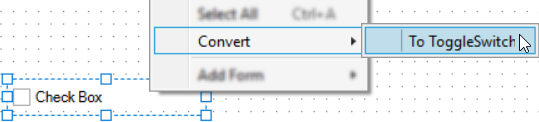
All properties common to both controls will be retained.
Styling the text that appears on form controls now support hyperlinks.
A hyperlink uses the [url] tag to open the link in the current tab of the browser (when running a specification in a browser).
Or using the [url-external] tag will open a new tab in the current browser (when running a specification in a browser).
When running a specification in a desktop application the link will be opened in a new tab of the default browser regardless of the hyperlink formatting tag used.
Hyperlinks are not supported when formatting text for the Tooltip Text property or on any button control.
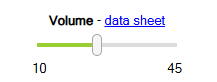
The Label control can now be more interactive, format the text property of a label to include links to product data sheets, company policies, etc.

Text formatting support has also been extended to the text property of the Slider Control.
 Learn more
Text formatting can now be applied to the caption property of form controls.
This includes formatting the text to display as bold, italic, underlined, color and as a hyperlink.
The caption property of the following controls also now support text formatting:
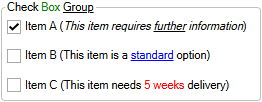
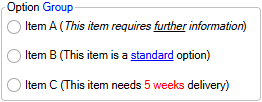
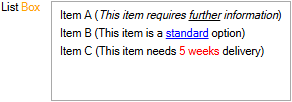
Learn moreItems presented in Check Box Group, Option Group and List Box controls can benefit from text formatting tags.
This includes formatting the text to display as bold, italic, underlined, color and as a hyperlink.
Learn moreThe opacity of each control can be controlled.
Apply a value between 0 (not visible) and 100 (fully visible).
 Learn more
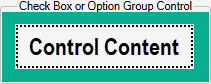
Group Padding property is available for the Check Box Group and Option Group controls.
Group Padding specifies the padding around items in the group.
Padding will control:
 Learn more
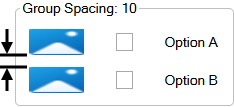
Group Spacing property is available for the Check Box Group and Option Group controls.
Group Spacing specifies the spacing between items in the group.
 Learn more
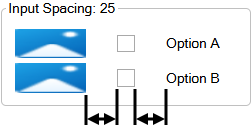
Input Spacing property is available for the Check Box Group and Option Group controls.
Specifies the spacing between the check/radio, caption and picture in terms of the group.
 Learn more
Input Icon Size property is available for the Combo Box control.
Specifies the size of the icon in the input.
 Learn more
Input Icon Margin property is available for the Combo Box control.
Specifies the margin between the icon and the edge of the input.
 Learn more
The Spin Button control allows empty (null) values.
When the nullable property is False, and the current value of the control is removed or deleted the control will default to the value applied to the Minimum property.
When the nullable property is True, and the current value of the control is removed or deleted the control will result in an empty or null value.
Learn more